This page compares daily macOS workflow fit, not every edge-case admin feature. Mongo GUI claims are based on the product itself. Competitor claims were checked against the official public docs and product pages linked below on April 20, 2026. If a capability was not clearly described in current public sources, this page avoids filling the gap with a guess.
macOS Comparison
What is the best MongoDB client for macOS?
If you want a MongoDB client that feels native on macOS, keeps daily document work fast, and combines browsing, query auto-completion, document search, query replay, exports, dashboards, monitoring, and optional review-first AI in one app, Mongo GUI is the strongest fit.
MongoDB Compass remains the safest default if you want the official free MongoDB GUI first. Studio 3T is stronger when your team wants a commercial MongoDB IDE with broader enterprise-style tooling. NoSQLBooster still appeals to shell-heavy users who want a desktop client with an embedded shell workflow.
Short version: choose Compass as the official baseline; choose Mongo GUI when the decision turns on native macOS feel, row-first responsiveness, reconnect restoration, Keychain-backed secrets, dashboards, or review-first AI verification.
Mongo GUI is the product being recommended here, so this is not a neutral buyer’s guide. The page is useful when it stays explicit about that, names direct competitors, shows first-hand screenshots, links official sources, and says when another tool is the better fit.
Recommendation Rule
The practical answer is not one-size-fits-all
| Best official default | MongoDB Compass, because it is the official free MongoDB GUI and the safest baseline for most teams. |
|---|---|
| Best Mac-native specialist | Mongo GUI, when the user wants a native macOS MongoDB client with row-first browsing, reconnect restoration, dashboards, Keychain-backed secrets, and review-first AI snippet verification. |
| Best commercial power-user IDE | Studio 3T, when the user wants broader paid IDE-style tooling and MongoDB is central to daily work. |
| Best shell-centric workflow | NoSQLBooster, when the user prefers an embedded-shell and script-heavy workflow. |
Comparison
Mac-focused MongoDB client comparison
| Feature area | Mongo GUI | MongoDB Compass | Studio 3T | NoSQLBooster |
|---|---|---|---|---|
| macOS-native experience | Built specifically for macOS with a native Swift/SwiftUI shell. | Cross-platform official GUI available on macOS, Windows, and Linux. | Cross-platform commercial IDE-style desktop app. | Cross-platform desktop client available on Mac OS X, Windows, and Linux. |
| Connection support | Direct, SRV, manual URI, TLS, SSH, saved profiles, workspace restoration, and guarded live actions when a connection degrades. | Official MongoDB connection workflow for Atlas and self-hosted deployments. | Advanced connection and team workflow positioning in current product docs. | Desktop connection workflow with embedded shell orientation and current auth-related release work. |
| Dense browsing and editing | Dense document table, inspector, structured editing, document search, pagination, and batch actions. | Query bar, schema analysis, aggregation builder, import/export, shell access, and visual explain. | Visual Query Builder, Collection Tab workflow, and commercial IDE-style tooling. | Shell-heavy desktop workflow with visual query builder, improved table view, and import/export tools. |
| Query replay and presets | Query auto-completion, named presets, recent draft replay, filter review, and copy-as-mongosh handoff. | Strong query and aggregation workflow, but not positioned around replay-first preset management. | Multiple query surfaces including visual builder, AI Helper, and IntelliShell. | Embedded shell, separate result tabs, and query tooling in a script-oriented workflow. |
| Export workflows | CSV and JSON export for active results or selected rows, plus aggregation-result export and clipboard actions. | Official import and export support for JSON and CSV. | Export assistant and broader data workflow tooling are core commercial differentiators. | Official release notes emphasize import/export tools and one-click export workflows. |
| Dashboards and monitoring | Smart Create dashboards, Slow Query Advisor, live watch, and performance monitoring in one workspace. | Visual explain and index analysis are strong; dashboard-style operational overview is not the main public story. | Profiler and admin-style tooling exist, but lightweight in-workspace dashboards are not the public focus. | Monitoring and diagnostics appear in release history, but not as a dashboard-first product story. |
| AI assistance | Optional side-panel assistant with user-owned key, concrete drafts, review-first follow-up actions, and a paste-to-verify bridge for AI-generated Mongo snippets. | Natural-language query and aggregation support in official docs. | AI Helper supports natural-language query building with user-supplied model/API configuration. | Current official releases emphasize AI Helper, natural-language query support, and custom AI model support. |
| Pricing posture | Free during beta. | Free to download and use. | Community Edition plus paid yearly plans. | 30-day trial, then a limited free edition. |
| Best fit | macOS-first users who want a native MongoDB workflow with monitoring and optional AI in one client. | Users who want the official free MongoDB GUI first. | Teams that want a commercial MongoDB IDE with broader admin and team-oriented workflows. | Users who prefer a shell-centric desktop client with long-running cross-platform history. |
Mongo GUI is the only option in this comparison built specifically around a native macOS shell and a single connected workspace that spans document review, query auto-completion, document search, replay-first query work, advisor-driven monitoring, exports, and optional review-first AI with safe snippet verification.
Compass is still the easiest recommendation when you want the official free MongoDB GUI, especially if your priority is staying close to MongoDB’s own tools and docs rather than optimizing for a more Mac-native daily workflow.
Studio 3T is the better fit if you want a paid MongoDB IDE with team/admin depth. NoSQLBooster still makes sense if you prefer a shell-centered desktop tool and already work comfortably in that style.
Mongo GUI Proof
Native shell plus repeat-work acceleration
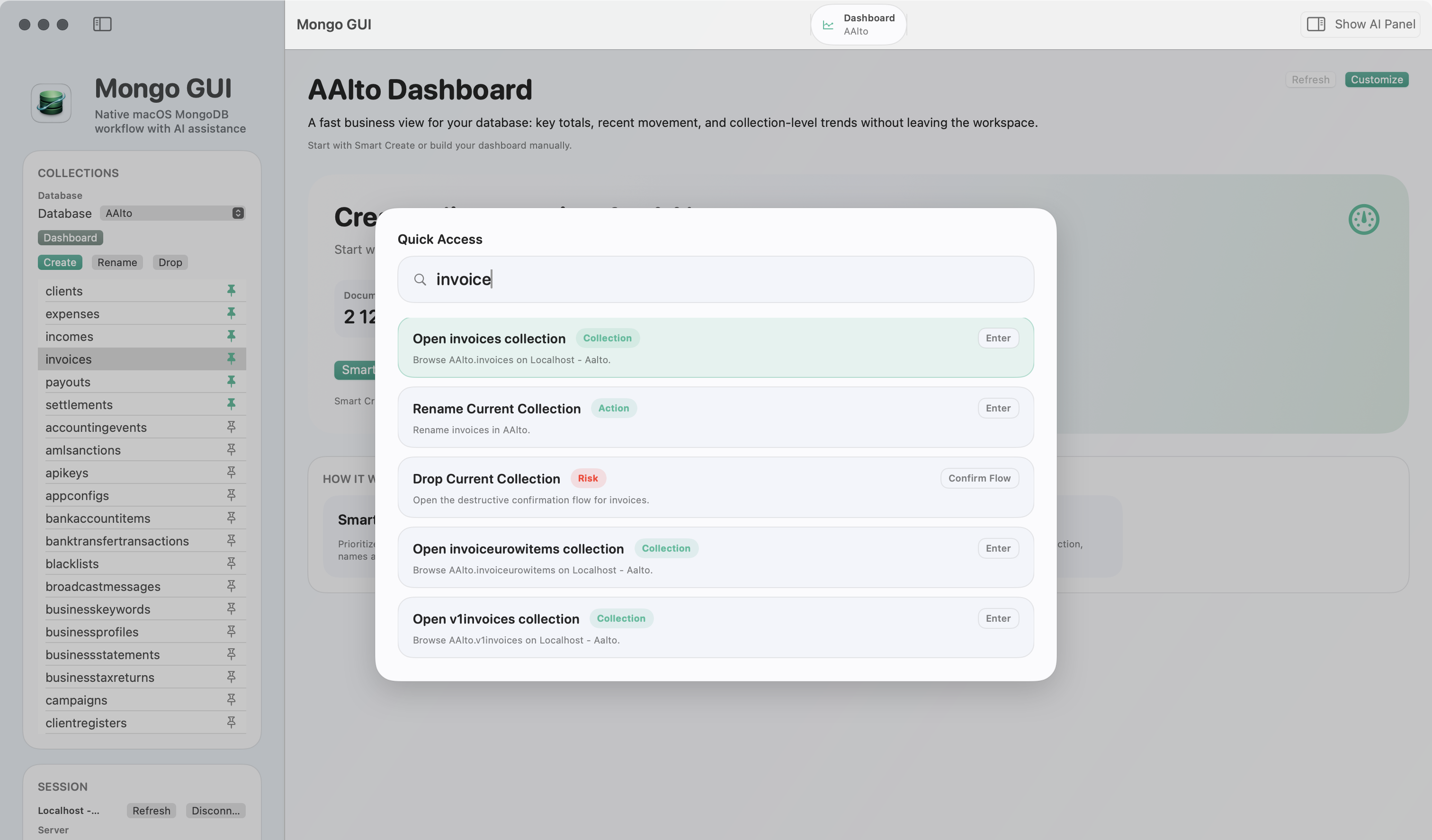
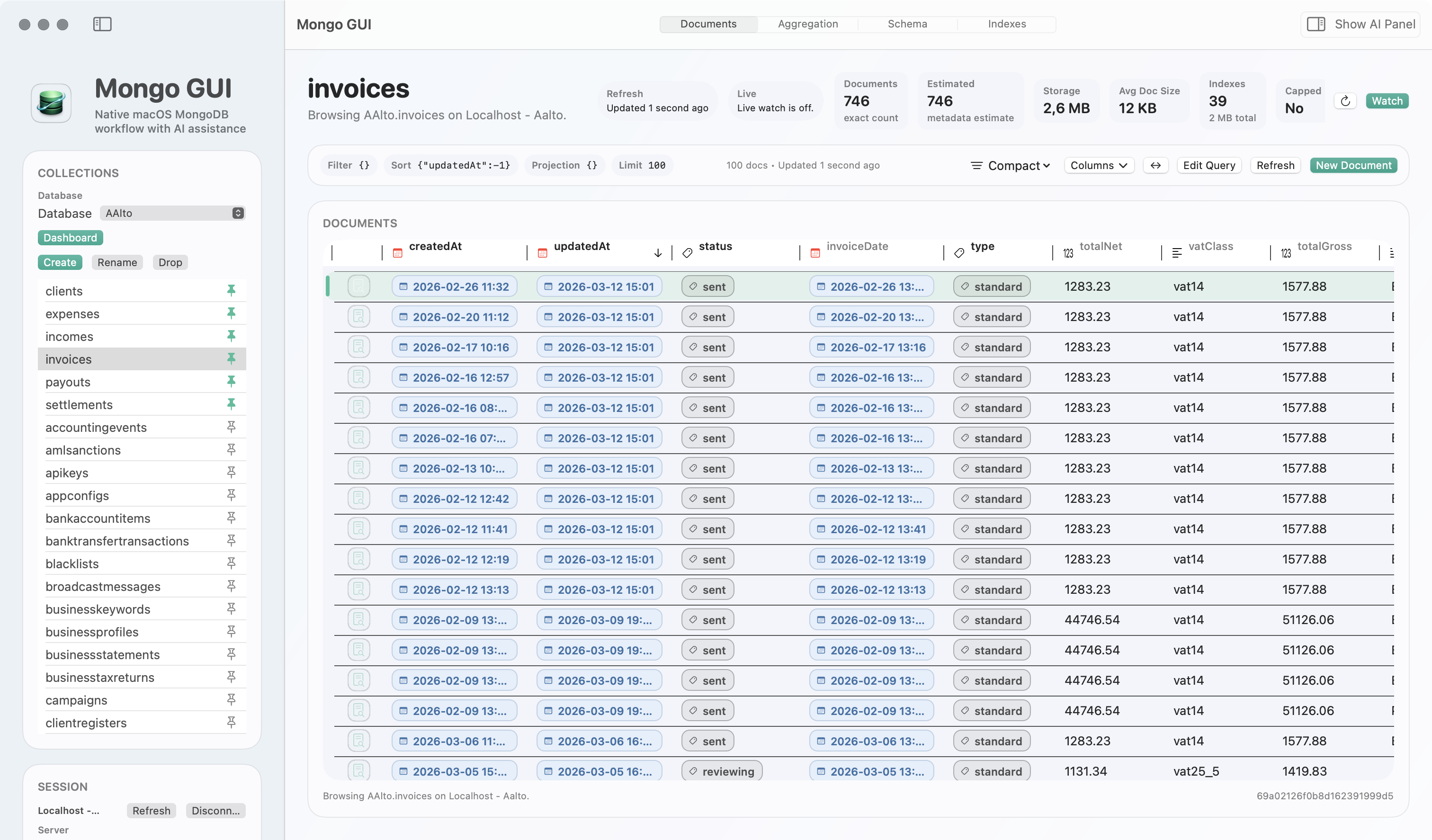
Quick access, dense browsing, query completion, and document search are visible directly instead of being abstract product claims.
First-hand screenshot
Operational Depth
Dashboards and monitoring stay in the same app
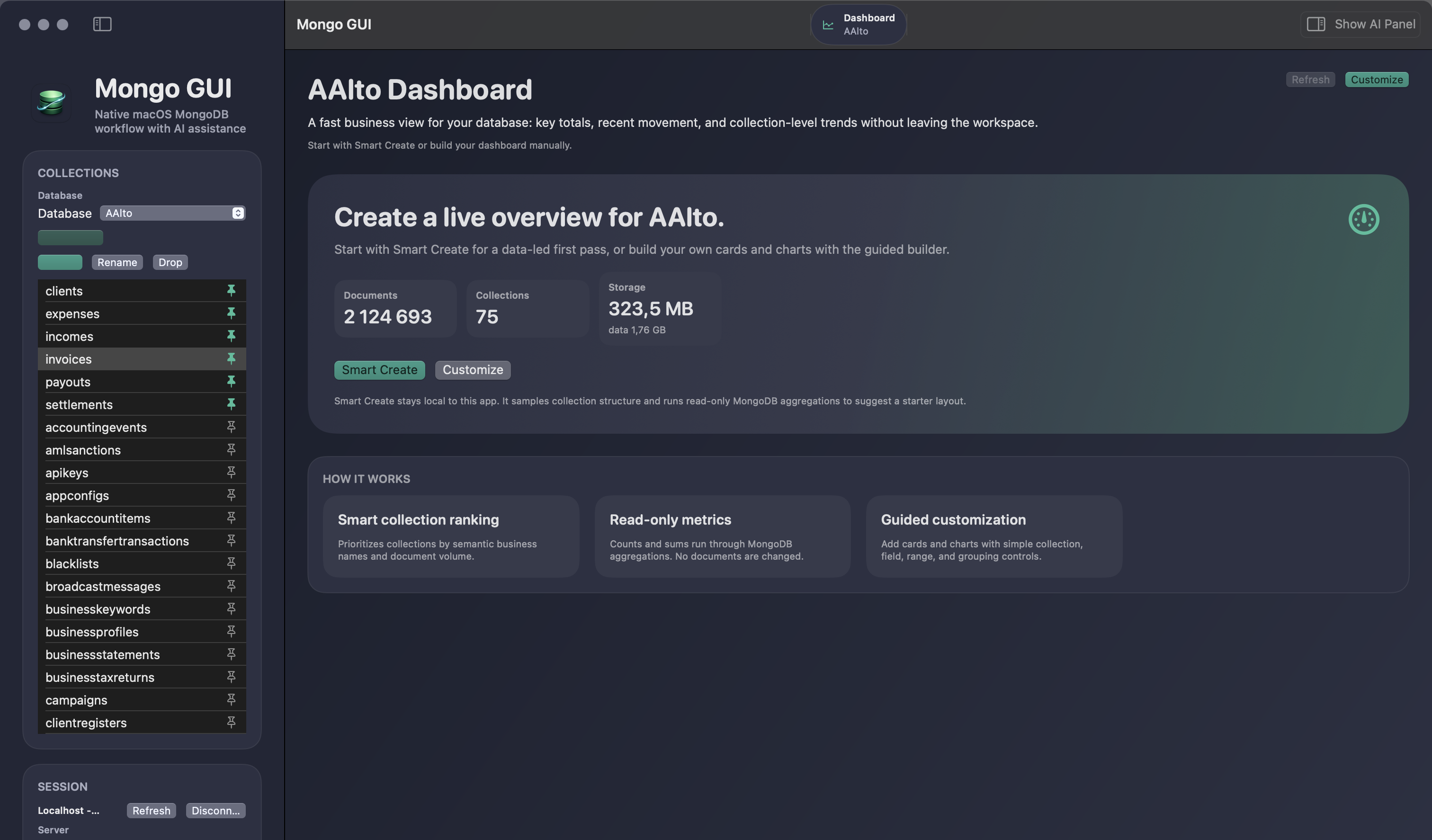
Smart Create dashboards and Slow Query Advisor make the monitoring story more actionable than a generic browser-shell GUI pitch.
Dashboard + monitoring
FAQ
Short answers to the obvious follow-up questions
These are the follow-up questions that usually come right after “what is the best MongoDB client for macOS?”
Is MongoDB Compass still the default recommendation for Mac users?
It is still the easiest default if you want the official free tool. It stops being the best fit when your priority becomes native macOS workflow, integrated monitoring, query completion, document search, richer repeat-work acceleration, or review-first AI in the same workspace.
Which MongoDB client feels the most Mac-native?
Mongo GUI. It is designed specifically as a macOS app rather than as a cross-platform browser-shell experience.
Which MongoDB GUI is best if AI matters?
If you want AI inside the database workflow rather than as a separate chat tab, start with the AI-focused comparison.
Next Step
Use the comparison, then test the native workflow directly.
If your shortlist is really “Compass or something that feels better on macOS,” the fastest way to resolve it is to install Mongo GUI and try the document, query completion, export, dashboard, advisor, and AI workflows in one session.